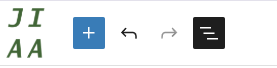
Start with a brand new page to try this out. At the top left you should see:
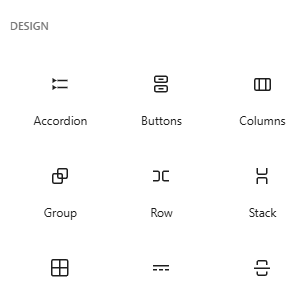
To protect content, your content needs to appear inside a Group Block. You can add one to the page by clicking the blue + icon, and scrolling down to Design. Click The Group icon and it will place it on the page.
Initially it will appear like this. For a simple layout, just click the single gray square.
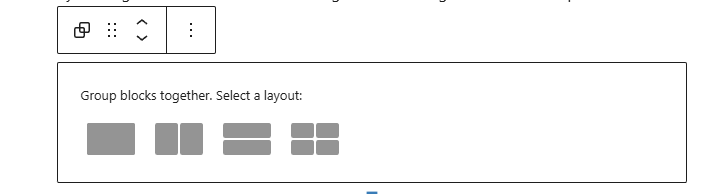
It will change to this:

From here, click the + inside the box to add your content. For this example, I will add a small menu like in tools using a Custom HTML block found under widgets. The menu is created from an unordered list with 1 list element, a hyperlink to the home page. In the editor the code it looks like this:
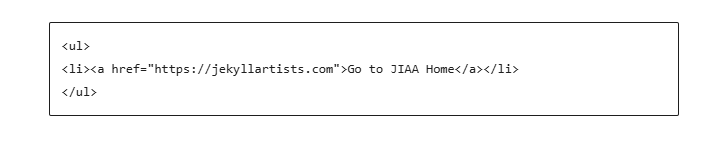
And on the page, it looks like this (but you won’t see it if you’re not logged in… stay tuned):
You can view the layout of your page by clicking the lines icon in the upper left:

Which for this page in development looks like this:
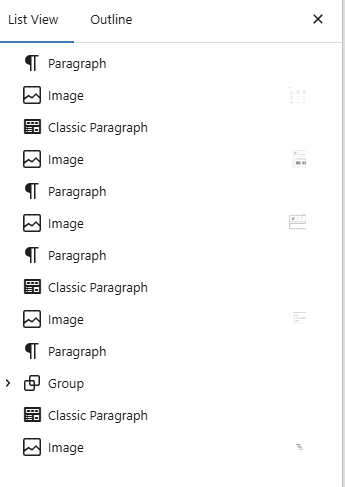
In this view, you can click and hold on any icon, and move that block up or down in the page.
Now, we have a group block in the page (just below “And on the page…”) and you can see it in the list as a Group. If you click on it in the list, it highlights:
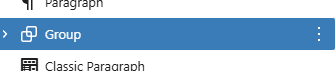
Note the > beside it. If you click on that, it will pop down to show you what’s inside. And on the right side of the page will be the controls for that block, once you’ve selected it:
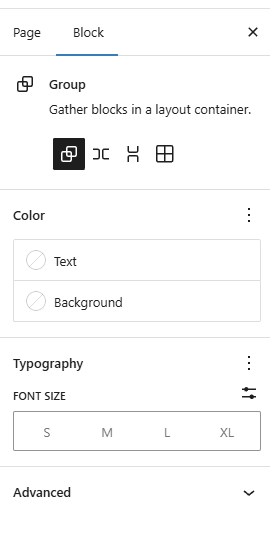
To control the visibility of the block, click on Advanced to pop those controls down, and insert one or more of the control words you want to use from this list:
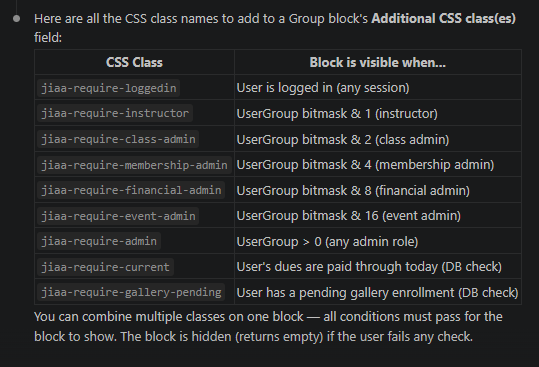
So, to restrict view of thiat block to only members who are logged in, in the advanced popdown in the Additional CSS Classes you would add jiaa-require-loggedin
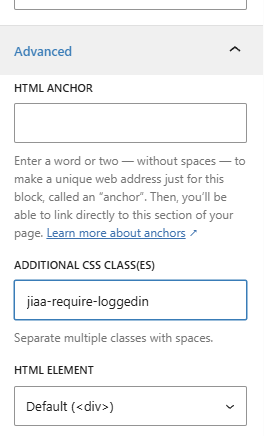
Then save the page.
Questions?